Wedding-day timeline: plan your day minute by minute in the app
The timeline in the INVITO couples’ app is your wedding-day schedule, minute by minute. Open the ‘Timeline’ section (on a phone, through ‘More’), tap ‘Start from a template’, enter the ceremony time and the app builds a typical day of 16 events, from getting ready to the cold sparklers. You can change every event: time, duration, place, details, contact person and phone. The app works out the golden hour for your wedding date and chosen city, warns you about overlaps in the same place, and the finished day can be copied as text or printed or saved as a PDF for your host and vendors.
A wedding day has dozens of moving parts, and everyone keeps only their own piece in their head. The makeup artist doesn’t know when the photographer needs you, the host asks again when the cake comes out, and someone remembers the sunset once it’s already dark.
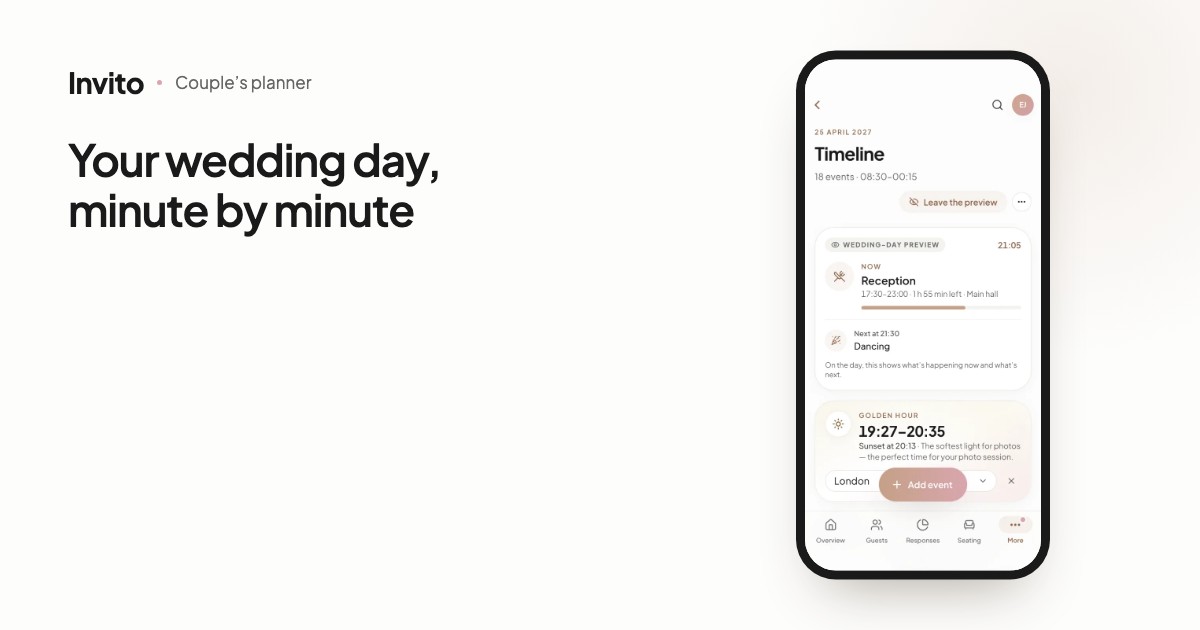
The ‘Timeline’ section of the couples’ app puts the whole day in one list: what, when, where and who to call.
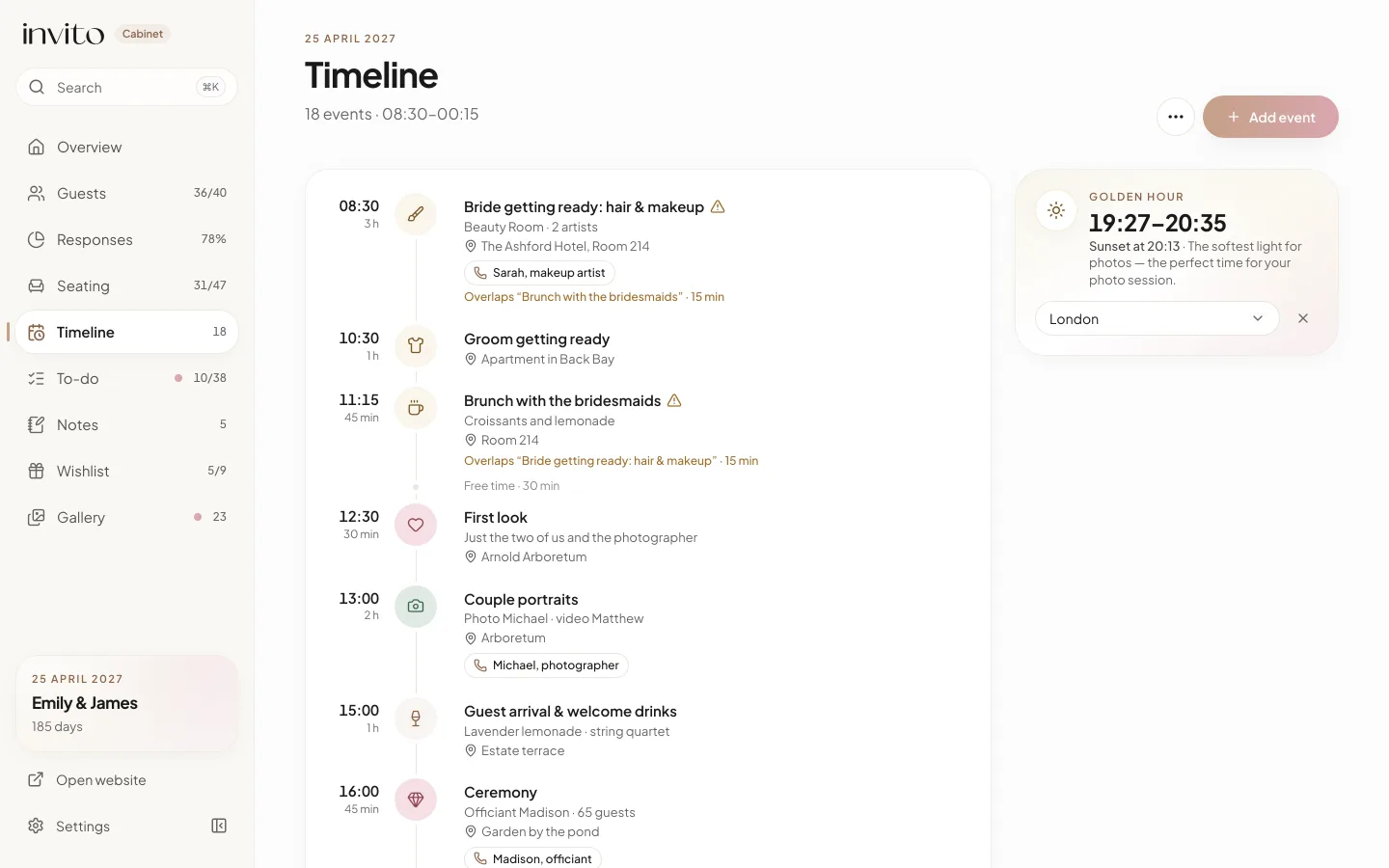
The timeline on a computer: events in time order with the golden-hour card alongside. Sample data, not a real wedding.
How it works
- Open the app. On a computer, Timeline is in the sidebar; on a phone, find it under the More tab.
- Tap Start from a template, set Ceremony starts at (16:00 by default) and tap Create the timeline. Or choose Add an event yourself if you’d rather start with a blank page.
- Open any event to change its title, icon, time, duration, place, details, contact person and phone.
- Add new events with Add event — in the header on a computer, or with the round button at the bottom on a phone.
- When the day is ready, open More actions (⋯) and choose Copy as text or Print or PDF.
The app opens in your browser, so there is nothing to install. Everything saves on its own, a moment after each change.
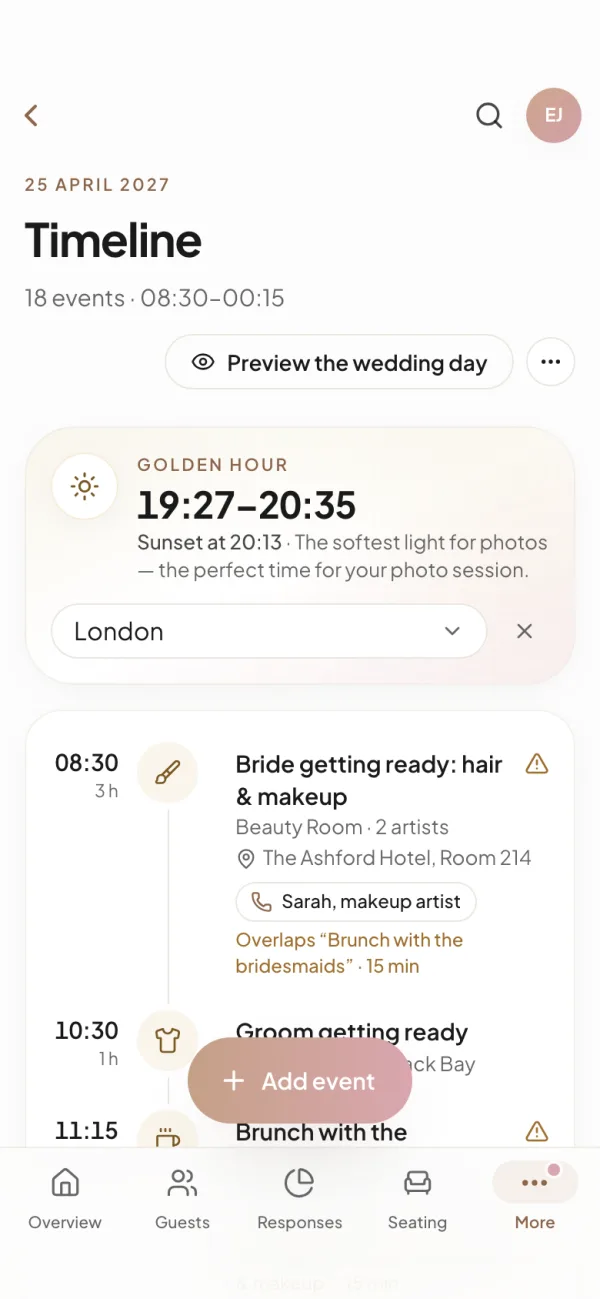
On a phone the cards sit above the list, and the Add event button is at the bottom of the screen.
A 16-event template built around the ceremony
The template counts the day out from the ceremony time. For a 16:00 ceremony, the bride starts getting ready at 08:30, the first look is at 12:30, the couple’s photo session at 13:00 and guests arrive for a welcome drink at 15:00. After the ceremony come congratulations, the reception dinner at 17:30, the first dance, toasts, sunset photos, the cake, the bouquet toss, dancing, cold sparklers at 23:00 and the end of the evening at 23:30.
While you type the ceremony time, the dialog shows the whole generated day. If you already have events, the Replace the current events switch decides whether the template replaces them or is added alongside. Titles come out in the app’s language, and you can rename any of them.
The event editor
Only the title and start time are required; the rest is up to you. There are 24 icons — rings, cake, camera, transfer, fireworks and more — and their colour hints at the part of the day: getting ready, the vows, photos, the party or logistics.
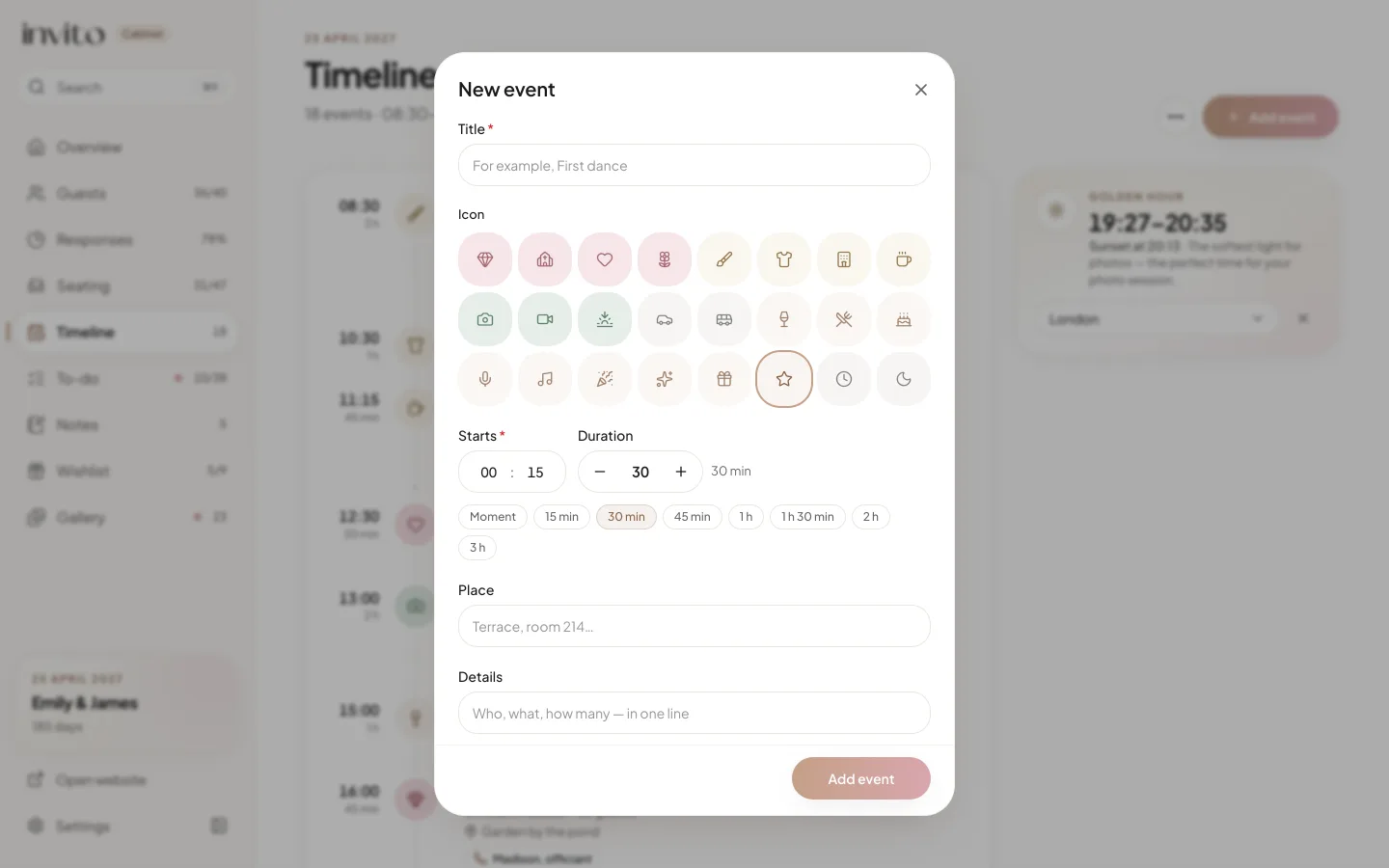
New event: title, icon, start time and a one-tap duration, from Moment to 3 h.
Set the duration with the Moment, 15 min, 30 min, 45 min, 1 h, 1 h 30 min, 2 h and 3 h buttons or with a stepper in 5-minute steps. A Moment has no duration, like the bouquet toss. Times always use the 24-hour clock, and events after midnight (say, 00:40) go to the end of the list, not the top.
If you fill in Phone, the list shows a button with the contact’s name — on a phone, one tap places the call.
Golden hour for your photos
The Golden hour card shows the window of the softest light and the sunset time. The app works them out for the wedding date in your order and the city you pick: 23 built-in cities across several countries, or My location. Times are shown in that city’s time zone.
In the list, the golden hour appears as its own row between events, and photo or video events that fall inside it get an In the golden hour badge. When the wedding date is known, the template moves the sunset photos to the start of the golden hour — as long as that fits within the dinner.
Overlaps, free time and shifting the day
- Overlaps. When two events partly overlap in the same place, a warning ‘Overlaps …’ shows how long the clash is. The first dance during dinner, or events in different rooms, don’t count as overlaps.
- Free time. Gaps of 30 minutes or more when nothing is happening are marked as Free time.
- Shifting. Change when an event ends and the app offers to move the following events by the same amount. If the ceremony moves, Shift the whole day moves every event by 5 to 120 minutes.
There’s no dragging events around with a mouse: the order always comes from the start times.
On the wedding day
Preview the wedding day shows how the Now card will look: the current event, how much time is left and what’s next. On the wedding day itself, this mode switches on by itself while the page is open.
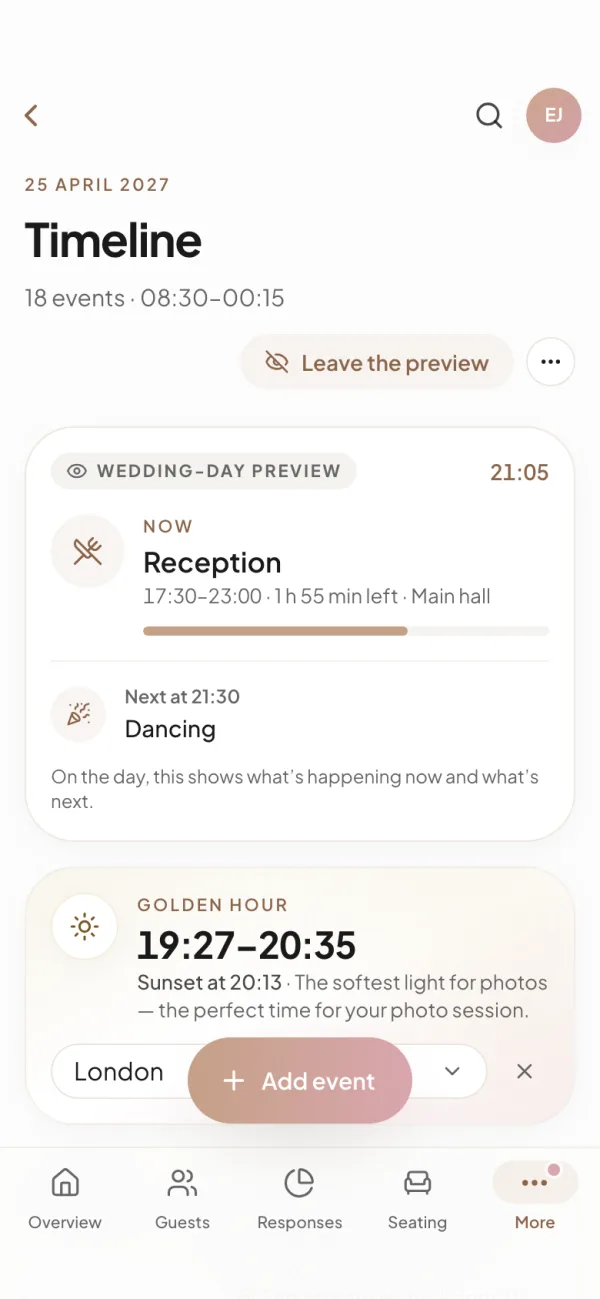
Wedding-day preview: what’s happening now, how long is left and what comes next.
What you get
- One schedule instead of scattered notes and chats — it opens on any of your devices, and if your order includes a wedding planner, they see it too.
- Your host and vendors get the same text or the same PDF, not a retelling over voice messages.
- Sunset photos are planned from a calculation for your date and city, not a guess.
- Moving the ceremony is one action, not rewriting two dozen lines.
The timeline is for you and your team: guests don’t see it on your invitation website. Read more about the app in our article about the couples’ app, and about seating your guests in the article on the wedding seating chart.
Frequently asked questions
- Do we have to build the timeline from scratch?
- No. ‘Start from a template’ asks only for the ceremony time and builds a typical 16-event day around it: from the bride getting ready to the end of the evening, with the first dance, toasts, cake, bouquet toss and cold sparklers. You can then change, rename or delete any event.
- How does the app know when the golden hour is?
- The app calculates sunset and the evening golden hour for the wedding date in your order and the city you choose, in that city’s time zone. It needs no internet connection for the calculation. You can pick one of 23 built-in cities or use your location.
- What if the ceremony moves by half an hour?
- The menu has ‘Shift the whole day’: every event moves later or earlier by 5 to 120 minutes. And if you change when one event ends, the app offers to move everything after it by the same amount.
- Will the app warn us if two events overlap?
- Yes, when two events partly overlap in the same place. The first dance during dinner, short moments with no duration and events in different places are not flagged. The number of overlaps also shows on the Overview page.
- How do we share the timeline with our host, photographer and other vendors?
- ‘Copy as text’ puts the whole day on the clipboard so you can paste it into any messenger. ‘Print or PDF’ opens an A4 page you can print or save as a PDF from your browser. Guests do not see the timeline — only the people you send it to.
- Can our wedding planner see it, and does it sync between our phones?
- If your order includes a wedding planner, they always see the timeline. It is saved to your account and opens on any device after you sign in. Changes don’t appear on the other phone by themselves: they show up the next time the timeline is opened. If you both edited at once, the app shows the latest saved version.
Want an invitation like this?
Pick a design — we do the rest. Send us your photos and wishes, and we prepare the site, the monogram and the language versions.