Your guest list as a PDF: what's in it and how to download it
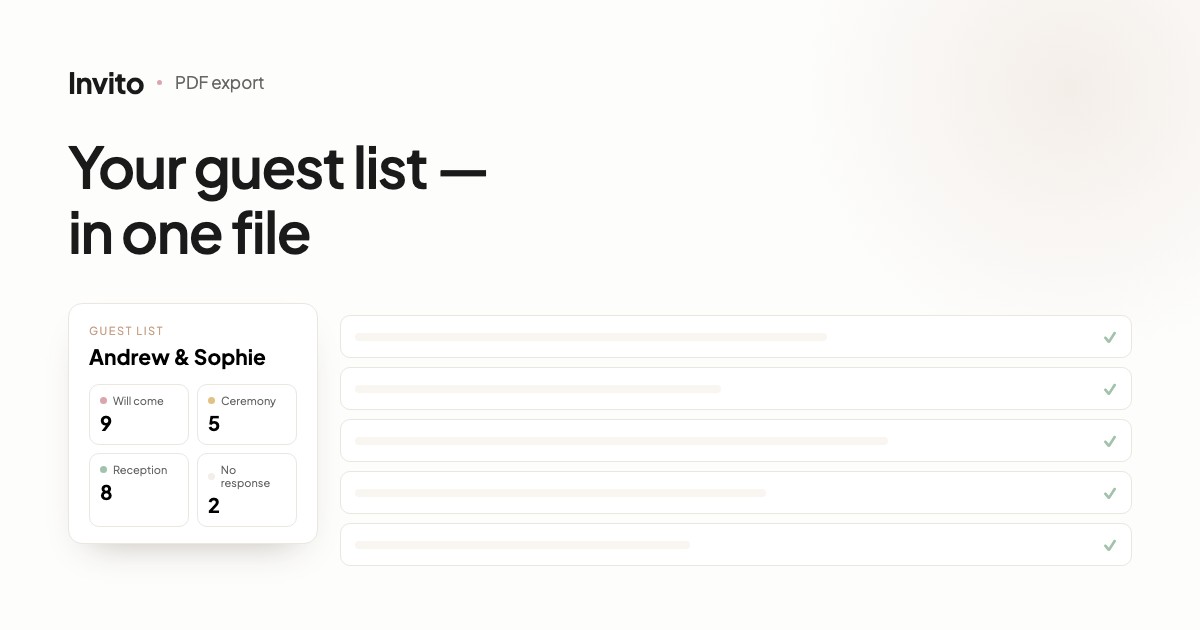
In the couple's app, open Statistics, tap Export and choose PDF. The file contains an RSVP summary (how many guests will come, who hasn't replied, who declined), a separate guest table for each part of the day, and a table of answers to each RSVP question: menu, drinks, transport, allergies. The numbers in the PDF match the app. For your own calculations there is also an Excel export with the same data.
The venue needs a headcount and the menu choices. The coordinator needs to know who is at which part of the day. The host needs the names. Until now all of that had to be copied out of the app by hand.
Now the couple's app puts your guest list into a clean PDF you can forward or print straight away.
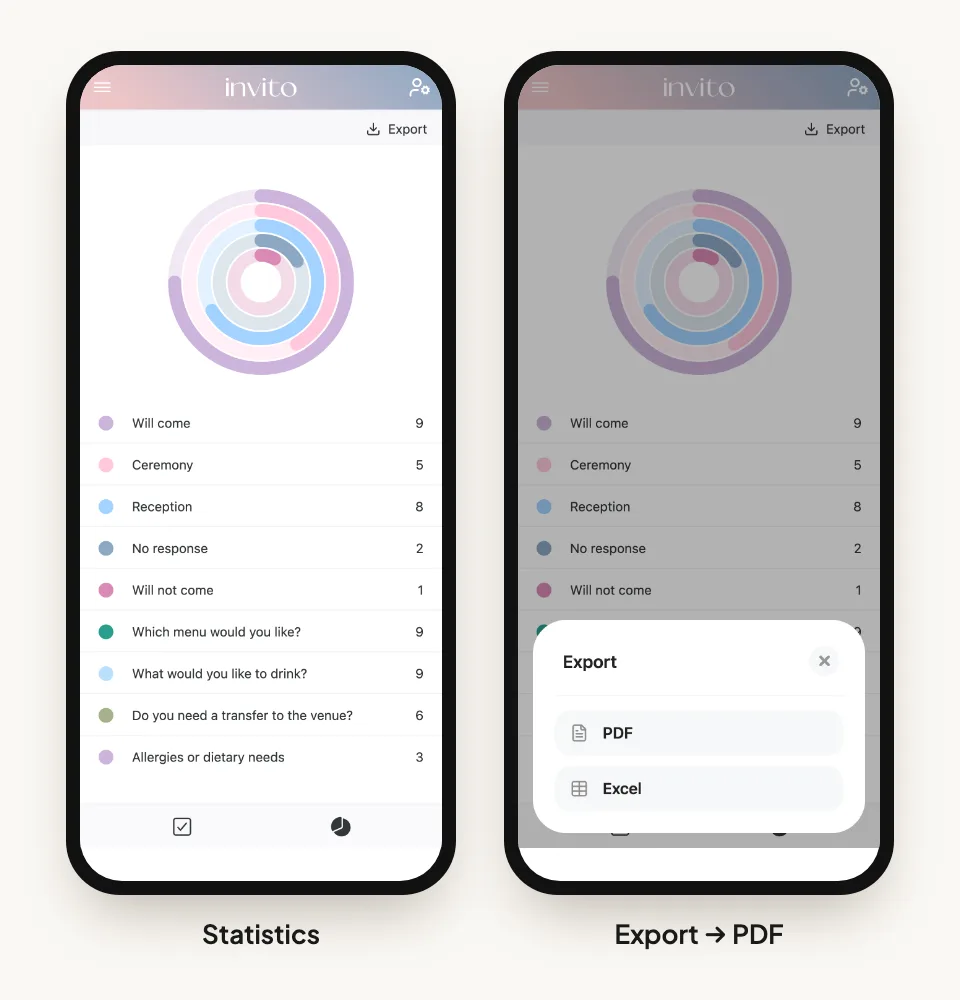
Statistics in the app and the Export button. Example with made-up data.
How to download the PDF
- Open the app and go to the Statistics tab, the second icon at the bottom of the screen.
- Tap Export in the top right corner.
- Choose PDF. The file saves to your phone or computer in a few seconds.
The file name includes the couple's names and the export date, so several versions never get mixed up.
Page 1: the summary
The first page is the Statistics screen on paper:
- Will come: how many guests confirmed;
- each part of the day separately, for example how many will be at the ceremony and how many at the reception;
- No response: who hasn't replied yet;
- Will not come: who declined;
- a card for each RSVP question with the number of guests who answered it.
The header shows the couple's names, the wedding date and the date the document was generated.
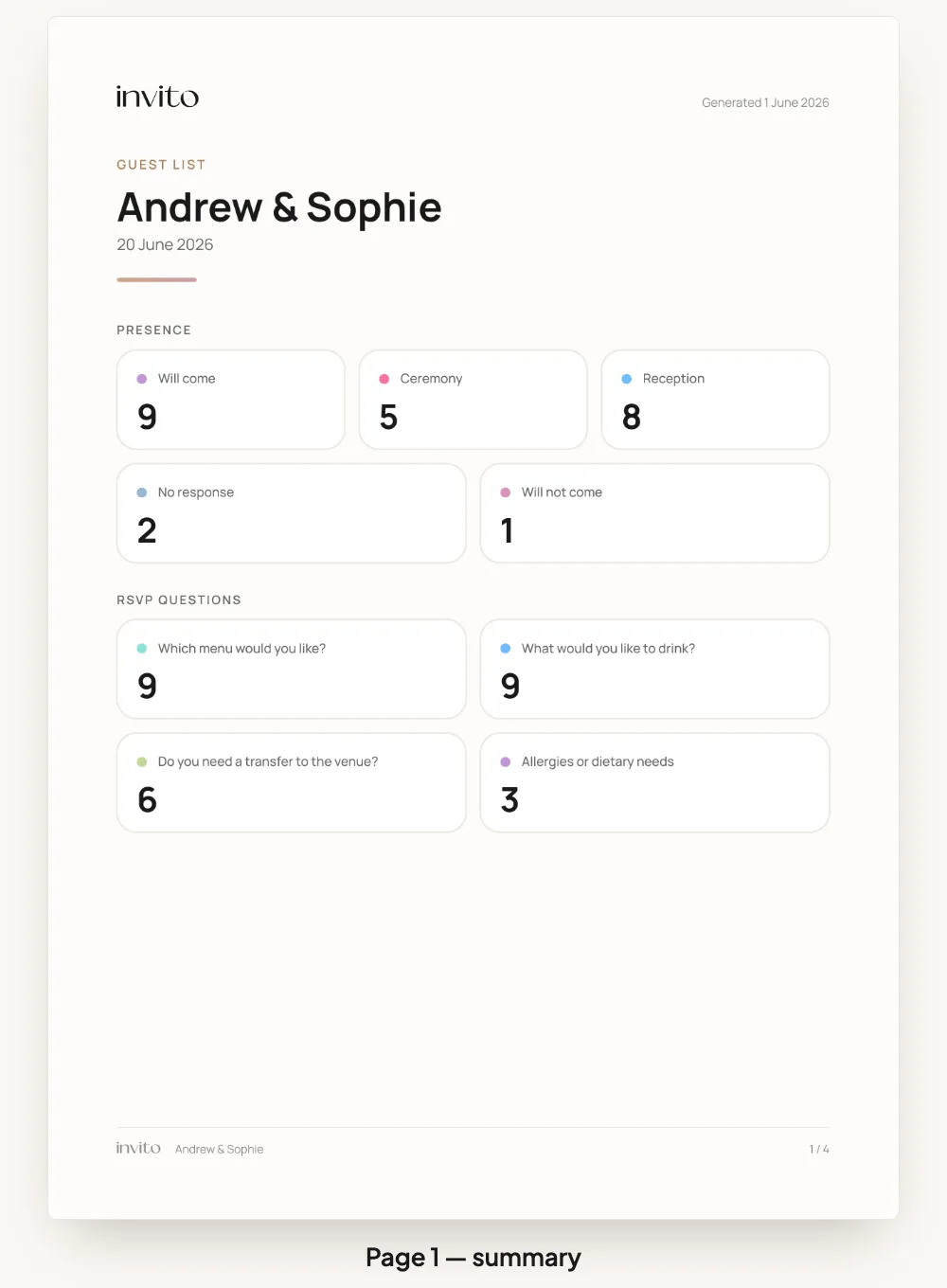
The summary: the same numbers as in the app.
Then: the tables
After the summary come the tables, each under its own heading with the number of people in it.
Attendance by part of the day. One table for the ceremony, another for the reception, listing the first and last names of the guests who will be there. For weddings in more than one place this is the most useful part: the number of guests at the ceremony and at the reception is often different.
Answers to your RSVP questions. For each question, who answered what:
- menu: which dish each guest chose;
- drinks: several answers separated by commas if a guest picked more than one;
- transport: the guests who need a lift;
- allergies and requests: the text exactly as the guest wrote it.
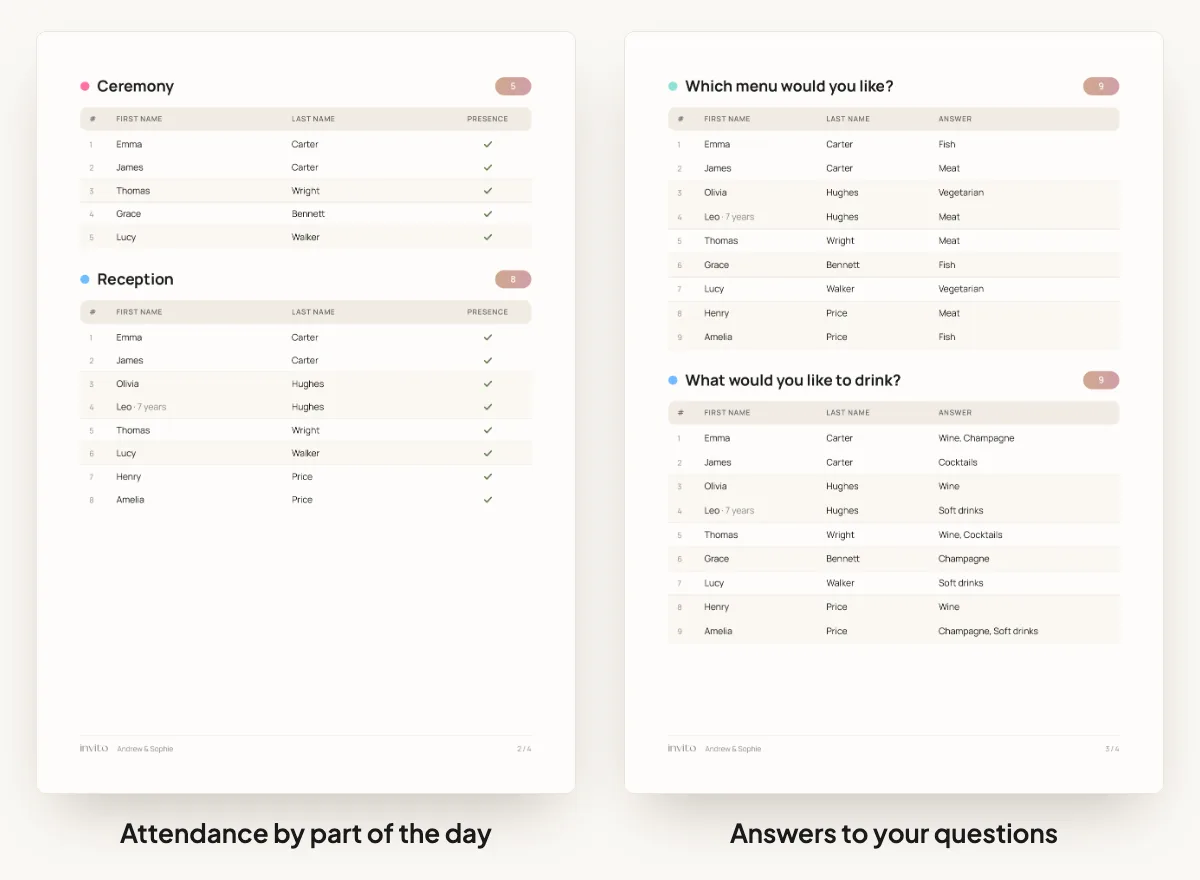
The tables: attendance by part of the day and answers to the questions.
Children are marked with their age next to their name, so the venue can see straight away who needs a kids' menu.
Who to send it to
| Who | What they'll look at |
|---|---|
| Venue | Reception headcount, menu choices, allergies |
| Coordinator | Who is at which part of the day, transport |
| Host | Guest names |
| You | Who hasn't replied yet, and who to remind |
PDF or Excel
The same sheet also offers Excel. The data is the same, the format is different:
- PDF: a finished document to forward or print;
- Excel: a spreadsheet, one guest per row, with filters and a separate Summary sheet. Handy for sorting out, say, everyone who needs transport.
A PDF captures the moment you export it. When new answers arrive, just export again.
More about the app itself is in the article about the couple's app, and about how guests reply in the one about online RSVP.
Frequently asked questions
- Where is the PDF export in the app?
- On the Statistics tab (the second icon at the bottom of the screen) there is an Export button in the top right corner. It opens a sheet with two options: PDF and Excel.
- What exactly goes into the PDF?
- An RSVP summary, a separate table for each part of the day (for example the ceremony and the reception) and a table of answers to each of your RSVP questions: menu choice, drinks, transport, allergies or anything else you asked.
- Do the numbers in the PDF match the app?
- Yes. The PDF counts guests with the same rules as the Statistics screen, so the number in the document is the number in the app.
- Does the PDF show who hasn't replied?
- The summary has a separate No response card with the number of such guests. The tables list by name the guests who are coming, since those are the people the venue and the coordinator plan for.
- What's the difference between PDF and Excel?
- The PDF is a finished document to send to the venue, the coordinator or the host, or to print. Excel holds the same data as a spreadsheet: one guest per row, filters and a separate summary sheet, so you can sort and count yourself.
- Do I need to export again when new guests reply?
- Yes. A PDF is a snapshot taken at export time, and the date is printed in its header. When new answers arrive, export again; it takes a few seconds.
Want an invitation like this?
Pick a design — we do the rest. Send us your photos and wishes, and we prepare the site, the monogram and the language versions.